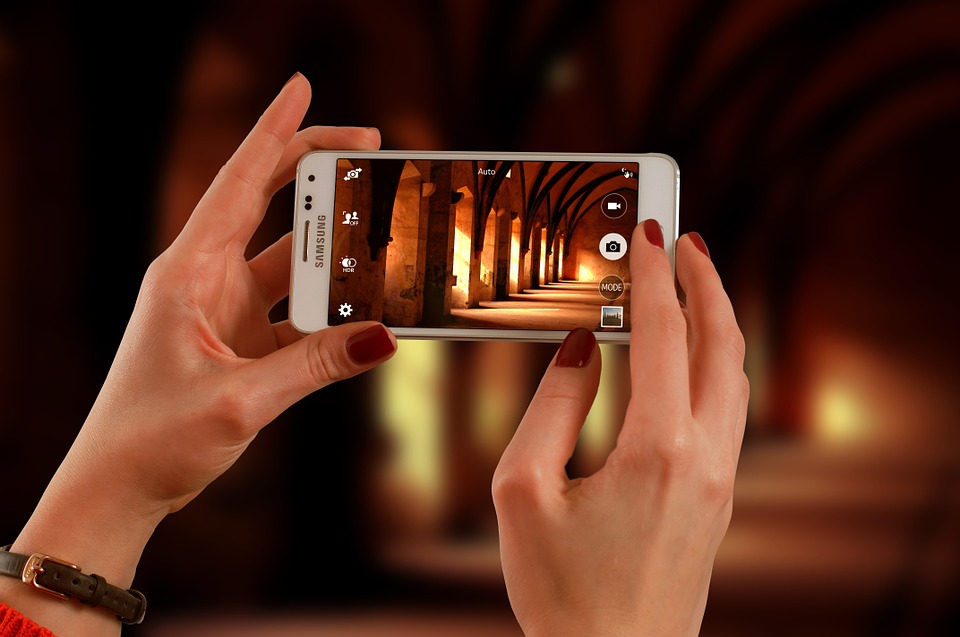
Most of the messengers today are enabled with video chatting but most of the laptops or notebooks available in market come with a low quality webcam of usually of 2.0 MP or less. Buying a good quality webcam from market may be too expensive. You may be wondering, “Can I use my phone as a web camera?”
Most of us have smartphones with a very good camera which we can use cell phone camera as web camera. We can connect our smart phone to computer wirelessly and use that to take photos and record videos or in video chatting. There are many software’s present in markets to turn your smartphone into webcam.
Step by step guide how to use iPhone, Android and Windows phone as a Webcam:
For iPhone:
- If your smartphone is an Apple iPhone, you can easily use your iPhone’s high Quality camera as webcam. The process is very simple and short. Download an app known as iWebcamera which is available for just $ 4.99 from iTunes. For this app to connect with your PC, you have to download drivers depending upon your operating system of PC. While installing drivers you have to open two ports (UDP Port 10310 and TCP port 8080) if you are using windows fire wall.
- After doing all this you are ready to use your iPhone camera as webcam. Start iWebcamera app in your iPhone and start which ever video chat application you use on your computer. The application will give you a choice to use your iPhone as webcam. Select that and enjoy
- Make sure that you have latest version of chatting application as older versions will not work well with iWebcamera.
For Android:
Android phones are very popular among the people these days. If you are having android phone then follow the steps given below:
- First, you need to install an app from Google Play store. There are many apps present on Google play store to turn your phone into webcam. Some of the popular apps are IP Webcam, DroidCamX Pro. I will tell you about IP Webcam, Which is free of cost and easy to use.
- Install the app and then open it up. Some settings are given default, customize them according to you or leave them as it is. Set up the required camera resolution, frames per second (FTP) rate, image quality and TCP port(8080 recommended). Higher FTP is preferred for good quality. Don’t set resolution higher then supported by the phone.
- For privacy, it is recommended to setup user ID and password.
- At the bottom of screen, you will find an option to start the service. After starting the service you will see the IP address on which your camera is available, with the port number in the notification region like as shown in picture given below.
- After finishing this, open web browser. Browse the phone webcam’s IP address by typing complete address shown in notification bar of your android phone and press enter. You will be able to view the video immediately. You will see various options there like JavaScript viewer, video stream in a media player, java plugin viewer etc.
- Now to share it with various applications you have to download the IP Camera Adaptor which is easily available on internet. After downloading, install that in your computer or laptop. Now set it up with matching the settings of your phone webcam and enjoy your android phone as high quality webcam.
- It is possible that your firewall may block video feed. If this happens and IP camera Adaptor doesn’t work then try to use other alternate apps mentioned above in this section.
For Windows Phones:
- If you are using a windows phone then you can use your phones camera as webcam by a paid app called PocketCam. This app turns your windows smartphone into a webcam and costs about $4.99 from Windows Phone app store. Using this app is most simple as compared to android’s and iPhone’s webcam apps.
- First download and install PocketCam on your windows smart phone.
- Then, also download pocket control software on your laptop.
- Connect your smart phone to internet and simply type the IP address of your computer to connect it with computer and use it as webcam.
- That’s it. You will now have to choose “PocketCam” on any video-chatting application on your computer.